
[pdfwp_tool tool=”one-page-pdf”]
Introduction
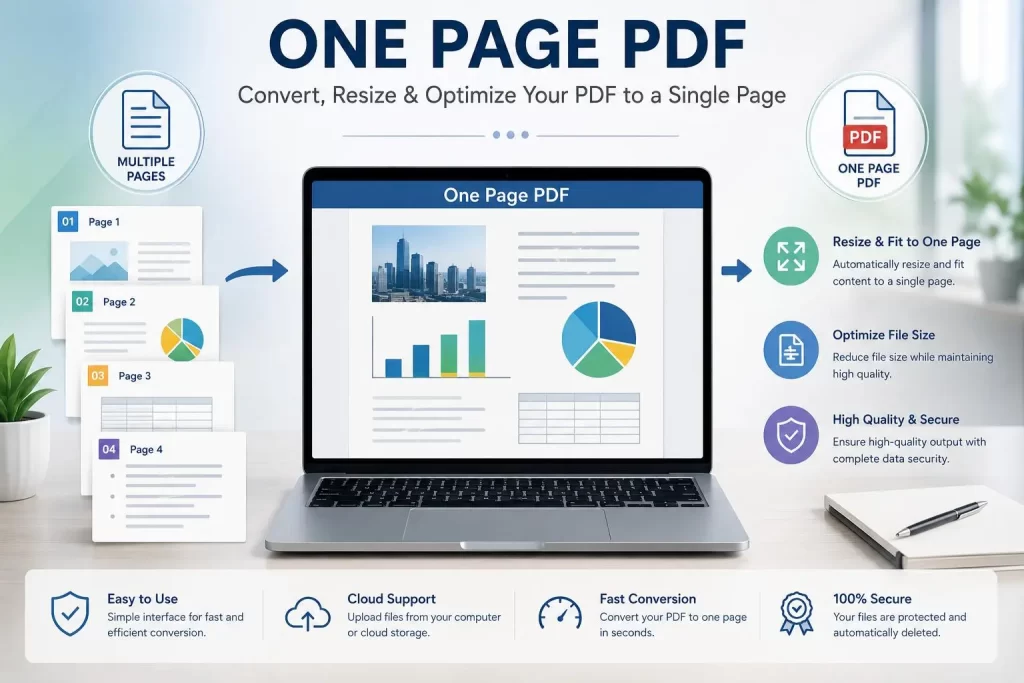
A One Page PDF is a Portable Document Format file that consolidates all your selected content or complete works onto a single, compressed page. This format adjusts font size, layout, and margin scaling to improve sharing, printing, and archiving capabilities while maintaining document legibility.
What Is a One Page PDF?
A One Page PDF is simply a Portable Document Format (PDF) file that consolidates all of your information onto a single page. Depending on your objective, it will generally:
- Merge multiple pages into one single printable sheet
- Resize fonts, graphics, and layouts to fit
- Scale down all pages within a particular document
- Adjust document margins for optimal presentation
- Optimize layout for better readability
- Streamline workflow for document combination and presentation
When you create a PDF file with two, three, ten, or dozens of pages, a One Page PDF can present them neatly for viewing, editing, or printing—enhancing flow and brevity with one simple click.
Why Use a One Page PDF?
Creating a One Page PDF provides countless advantages, whether personal or professional:
Superior Organization
Avoid a barrage of different documents by consolidating important information into one consolidated page that is easily scanned for all needed information.
Easy Sharing
Downloading and sending large files (or a bunch of documents) can eat up your time and storage. A smaller, combined One Page PDF file loads and sends quickly via email.
High-Quality Printout
For easier distribution or handy printing at home or in the office, a One Page PDF reduces wasted paper and fits perfectly to your desired page size.
Professional Look
For designers and entrepreneurs, a One Page PDF can make a huge impression:
- Sales Reports
- Brochures
- Flyers
- Business Cards
- Presentable Invoices
- Product Sheets
- Infographics
These streamline business communication.
Increased Readability
With all information condensed to single-page format, it significantly speeds up the review time for your reader.
Key Features of a One Page PDF Tool
| Feature | Benefit |
|---|---|
| Page Scaling | Adjusts size of content to fit one sheet |
| PDF Compression | Shrinks file size up to half or more |
| Margin Adjustment | Provides optimal presentation and readability |
| Page Orientation | Supports portrait or landscape |
| Drag-and-Drop Uploading | Easy to upload files from device or online storage |
| Built-in Security | Protects all downloaded documents |
| Fastest Conversion | Saves you valuable time |
| Cloud Availability | Works with Google Drive and other cloud providers |
| High-Quality Results | Preserves visual and text quality |
| Cross-Platform Compatibility | Works with Mac and Windows |
How Does a One Page PDF Work?
With online tools available, creating a One Page PDF takes just a handful of clicks:
Step 1: Upload Your PDF
Upload from your device, computer, or any of your cloud services like Google Drive or Dropbox.
Step 2: Select Layout
Choose how your document gets laid out. Typical options include:
- Portrait or Landscape orientation
- Single Page per Sheet or Multiple Page spread
Step 3: Resize Content
The One Page PDF tool can automatically resize everything, including photos and text, while ensuring your document remains readable.
Step 4: Generate One Page PDF
After processing, the PDF is ready—just hit “Generate PDF.”
Step 5: Download YOUR One Page PDF
Download your finalized copy!
Common Uses of One Page PDFs
Students
- Revised notes
- Lecture outlines
- Class summaries
- Study resources
- School reports
Its practicality enables students to carry around all necessary information with ease in a single document file—ideal for note-taking.
Businesses
- Annual and sales reports
- Company profile information
- Business presentations
- Project summaries
- Product catalogs
- Marketing and advertisement presentations
This format saves significant amounts of printer ink and storage space.
Teachers
- Lesson plans
- Presentations
- Study guides
- Worksheets
- Classroom posters
It’s your go-to for making handouts for students and organizing teaching materials effortlessly.
Graphic Designers
- Portfolio presentations
- Posters
- Business cards
- Flyers
- Mockups
- Infographics
- Portfolio layouts
You can present any kind of design to your audience without fuss.
HR Professionals
- Employee highlights
- Interview notes
- Employee summaries
- Résumé profiles
Simplify presentations to prospects and other involved parties.
Benefits of Creating a One Page PDF
Saves Paper
By merging your selected parts into one document page instead of several documents, you can considerably cut down ink consumption and minimize environmental impact from paper waste.
Saves Space
Just as it reduces ink consumption, this document format saves space on your personal hard drive and cloud storage.
Quick to Archive
Keeping, storing, and retrieving One Page PDFs from your files is substantially simpler, with endless possibilities for cataloging on your computer.
Increased Accessibility IN One Page PDF
Your target audience can instantly scan for required details because the information flows smoothly.
Clean Presentation In One Page PDF
The arrangement of your content can instantly boost and improve user and reader engagement.
Best Practices for Creating High-Quality One Page PDFs
- Ensure your uploaded source documents consist of high resolution and proper format
- Keep original font sizes preserved after resizing so they’re visible for any audience
- Remove unnecessary empty pages and sections, leaving only what’s required
- Use compression thoughtfully to lessen file dimensions without altering content quality
- Maintain consistency in page margins
- Carefully select page dimensions and orientation based on final purpose
- Re-assess content before and after conversion to ensure the resulting PDF file looks its best
- Pay close attention that graphics remain clear and crisp when adjusting for different formats
- Properly select page proportions (custom sizes like 8×10 inches)
- Unclutter layouts to make visual presentation and navigation uncomplicated
Industries That Benefit from One Page PDFs
- Higher Education
- Health Care & Science
- Finance
- Legal Industry
- Real Estate
- Marketing/Advertising
- Publishing
- Government Works
- Professional and Business Services
- Retail
- Design and Photography
- Law & Legal
- Business Accounting
- And so much more
Amazing Features in Modern One Page PDF Tools
Auto Page Scaling
This feature enables smart adjustment of your document so that all content neatly fits into one single document without manual scaling. It effectively retains the formatting of text, tables, graphs, and images as much as possible.
Smart Margin Adjustment
A One Page PDF converter often works by adjusting margins—reducing all unnecessary white space to make more room for content while keeping it looking good.
Multiple Layout Options In One Page PDF
Most tools allow users to select between several pre-defined page layout formats:
- Portrait
- Landscape
- A4
- Letter
- Legal
- Custom page size
Correct page layout enhances overall look and print quality.
High-Quality Image Optimization
Good One Page PDF converters intelligently optimize image format rather than simply reducing resolution. This ensures images appear sharp while retaining their size.
Fast Cloud Processing
The majority of these PDF tools process documents using the cloud, greatly speeding up conversion. Cloud processing enables access from:
- Windows
- Mac OS
- Linux
- Android
- iPhones
- Tablets
Batch Processing
Advanced tools allow users to convert multiple PDF files into single-page documents at one time—a saving grace for many businesses and professions.
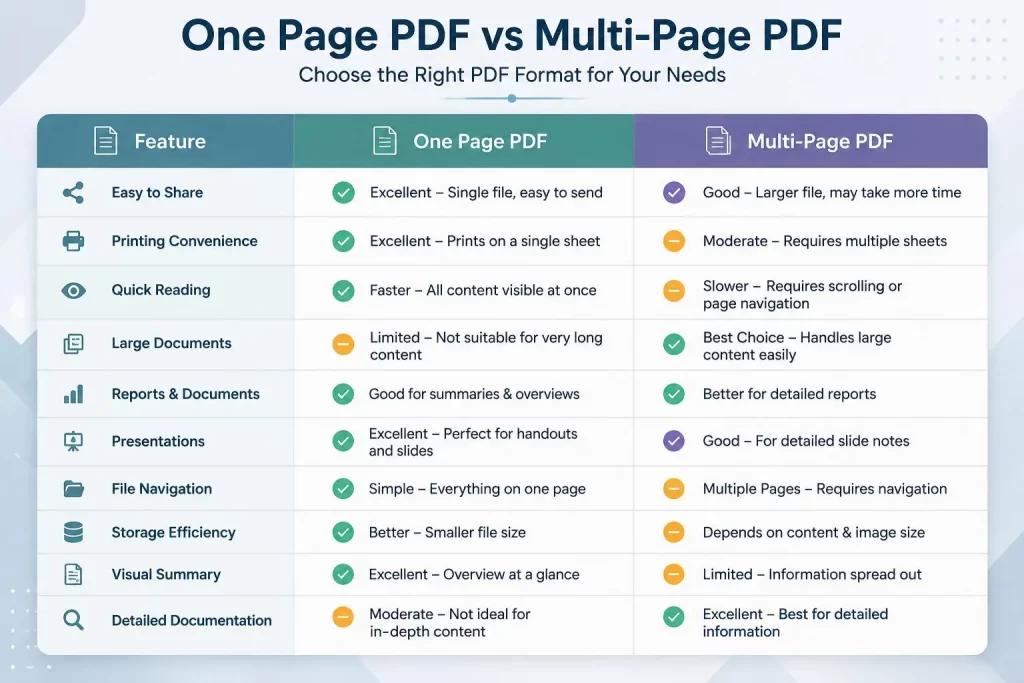
One Page PDF vs. Multi-Page PDF
| Feature | One Page PDF | Multi-Page PDF |
|---|---|---|
| Easy to Share | Excellent | Good |
| Printing Convenience | Excellent | Moderate |
| Fast Reading | Faster | Slower |
| Large Documents | Limited | Best Choice |
| Reports | Good | Better |
| Presentations | Excellent | Good |
| File Navigation | Simple | Multiple Pages |
| Storage Efficiency | Better | Depends on Size |
| Visual Summary | Excellent | Limited |
| Detailed Documentation | Moderate | Excellent |
Choose a One Page PDF when you need:
- Executive summaries
- Reports
- Flyers
- Posters
- Product sheets
- Infographics
- Lecture notes
- Presentation handouts
Choose a Multi-Page PDF when you need:
- Books
- Manuals
- Contracts
- Research papers
- Technical documentation
- Large reports
Common Problems and Solutions
Tiny Text
Problem: While cramming several documents into one single PDF page, text may become so small that it’s invisible.
Solution: Either drastically reduce the number of documents in your PDF, or opt for a larger page size.
Cropped Content
Problem: Improper scaling may cut away portions of your images or tables.
Solution: Preview the PDF before downloading. Adjust settings if any content is missing on preview, then download.
Blurry Images
Problem: If the source image wasn’t great to begin with, it may come out pixellated after scaling down.
Solution: Upload high-resolution images before converting and look for a PDF converter that uses smart image scaling.
Large File Size
Problem: A one-page document isn’t always guaranteed to be small when it comprises loads of high-resolution images.
Solution: Resize and compress images before converting. Strip out unrequired features such as bookmarking before downloading.
Formatting Issues
Problem: Different PDF makers may interpret fonts or spacing differently, resulting in different layouts.
Solution: Stick to standard fonts and test your document file on different operating systems to check different renditions.
Security and Privacy Considerations
When dealing with confidential documents, your primary concern should be safety. Always use a trustworthy Online One Page PDF Converter. Ensure the service provides:
- Secure HTTPS connection
- Encrypted File Transmission
- Automatic deletion of files after download
- No sharing of uploaded files
- Privacy standards compliance
- Virus-free downloads
Important: Never upload sensitive legal documents or any sensitive data on any website unless you have researched the site thoroughly.
Professional Best Practices
- Keep it Simple: Do not overcrowd the document. Use adequate spacing and a clean, easy-to-scan layout.
- Put Most Important Content First: Place key data near the top so readers see it first without scrolling.
- Readability of Fonts: Use well-suited fonts of a reasonable size to keep them readable on the scaled-down document.
- Smart Optimization of Images: Resize and compress images smartly before converting to reduce page size without compromising quality.
- Consistent Formatting: Maintain uniform fonts, colors, headings, and alignment. Use consistent margins, spacing, and bullet points.
Who Should Use One Page PDF Files?
Students
- Revision sheets
- Course summaries
- Assignment summaries
- Projects
Teachers
- Lesson plans
- Worksheets
- Handouts
- Course outlines
Professionals/Business People
- Executive summaries
- Sales reports
- Financial summaries
- Company profiles
Designers
- Portfolios
- Marketing materials
- Flyers/Posters
Freelancers
- Client proposals
- Invoices
- Service brochures
Government Offices
- Information sheets
- Public notices
- Guides
EEAT: Trustworthiness in One Page PDF Tools
The EEAT (Experience, Expertise, Authoritativeness, and Trustworthiness) criteria is a key concept for Google. Here’s why One Page PDF tools should be chosen carefully:
Experience
Reliable and efficient tools developed from a user’s point of view make workflows smoother and more accessible.
Expertise
Professional PDF converters can efficiently scale and resize documents without any loss in print quality.
Authoritativeness
Established PDF providers constantly upgrade their programs, deliver clear directions for use, and support current PDF standards.
Trustworthiness
Professional One Page PDF Converters need to be secure using encryption, have reliable file retention policies, and automatically delete files after processing.
One Page PDF and AI Search & SEO
With more searches being done by AI search engines, documents need to have a correct hierarchical structure. Using One Page PDFs:
- Allows AI search engines to scan the page clearly
- Enables easy extraction of useful data with good ordering
- Creates a better response for the user when it comes to AI search engine results
FAQs About One Page PDFs
1. How do I define a One Page PDF?
A PDF file named a “One Page PDF” consists of selected items which are scaled to fit into the document so that each content item appears once on a PDF sheet. It’s typically used for flyers, reports, résumés, presentations, and general written articles.
2. How do I turn a multi-page document into One Page PDF?
To change a multiple-page document into one page, upload your PDF to a trusted conversion website, select an appropriate solution to adapt and size your pages, modify margins and page direction, then download and use your new PDF.
3. Will my quality decrease while saving as a One Page PDF?
As long as you convert using a secure service provider, you’ll receive top-of-the-line resolution. However, extremely small writing on One Page PDFs might hinder reading clarity.
4. May I print my One Page PDF document?
Yes! Your document has been altered to meet One Page requirements, making it easily printable and paper-saving by combining documents into one single page.
5. Is One Page PDF safe to save and download files?
There’s no worry that your documentation can be maliciously leaked when using reputable conversion software that employs encryption and deletes files after processing. Always check the “Privacy Policy” before uploading vital documents.
6. Can I access my document from other devices?
Yes. Most tools work with both Mac and PC and assist with mobile or tablet devices, offering Windows OS and iOS compatibility.
7. What types of documents should be converted into One Page PDF format?
Documents such as resumes, executive reports, flyers, handouts, and posters benefit from One Page PDF. However, books, research documentation, policy drafts, financial statements, and legal contracts are better left in multi-page format.
Summary of Handy Shortcuts
- Use clean, clear documents
- Keep font dimensions easily visible
- Clean away redundant blank sheets
- Reduce larger file-size pictures to smaller, lighter sizes
- Select appropriate page direction
- Preview documents with online viewer before downloading
- Use trustworthy PDF transformation software
- Don’t overdesign your layout
- Print test documents for legibility assurance
- Use cloud storage for sharing or accessing documents on the go
Conclusion
A One Page PDF file simplifies handling and managing documents. Whether you’re producing revision work for studies, generating an outstanding executive presentation, or creating an appealing design project, a simple One Page PDF reduces ambiguity, significantly boosts how you use documents, and assists printing, downloading, and sharing tasks.
One-page documents are excellent when used through a service that guarantees top-quality results and protects users.
Making the Most of One Page PDFs
- Always begin with a tidy, well-formatted document
- Use perfectly intelligible print measurement — don’t go for too small a size just to fit your page
- Eliminate extra pages as a crucial initial step
- Decrease file size if there are large-sized images implemented
- Orient your pages properly before preparing your PDF document
- Convert and download a finished high-quality file
- Use cloud storage like Google Drive or Dropbox to protect your documents